A monitor upgrade is one of the highest-leverage hardware investments you can make for productivity. The research on multiple monitors is clear: for most knowledge work, a second screen adds 20-30% to task efficiency. The right primary monitor reduces eye strain, improves posture, and makes the visual work of your day meaningfully more pleasant.
Here’s how to choose correctly.
What Actually Matters
Size. For a primary work monitor: 27-32 inches is the sweet spot for most home office setups. Smaller and you’re scrolling constantly. Larger and you’re turning your head to see everything, which causes neck strain.
Resolution. 4K (3840×2160) at 27 inches produces a noticeably sharper image than 1440p and eliminates the pixel-level eye strain that accumulates over a full work day. At 32 inches, 4K becomes less optional — the lower pixel density of 1440p at this size is visibly soft at normal viewing distance.
Panel type. IPS panels produce accurate colors and wide viewing angles — essential for anything involving visual judgment. VA panels have better contrast for dark environments. TN panels are fast for gaming but poor for work. For home office productivity: IPS is the correct choice for most people.
Refresh rate. For productivity work, 60Hz is sufficient. 144Hz makes scrolling and cursor movement marginally smoother — nice but not necessary unless you game on the same monitor.
Eye care features. Flicker-free backlighting and blue light reduction matter for people spending 8+ hours in front of a monitor. Many premium monitors now include these features without compromising color accuracy.
My Picks
Best Overall: LG 27UK850-W 27″ 4K IPS (~$450)
4K, IPS panel, USB-C connectivity that charges a laptop through a single cable, accurate color, and consistent reliability. The USB-C single-cable setup eliminates desk clutter and is particularly valuable for laptop users who want one cable to connect everything. This is the monitor I’d buy today starting fresh.
Best Budget: Dell S2722QC 27″ 4K (~$300)
4K resolution, IPS panel, USB-C, and Dell’s reliable quality control at a price that undercuts most competitors. The color accuracy is slightly below the LG but not noticeably so for non-creative work. The best value 4K monitor available.
Ultrawide Option: LG 34WN80C-B 34″ Ultrawide (~$500)
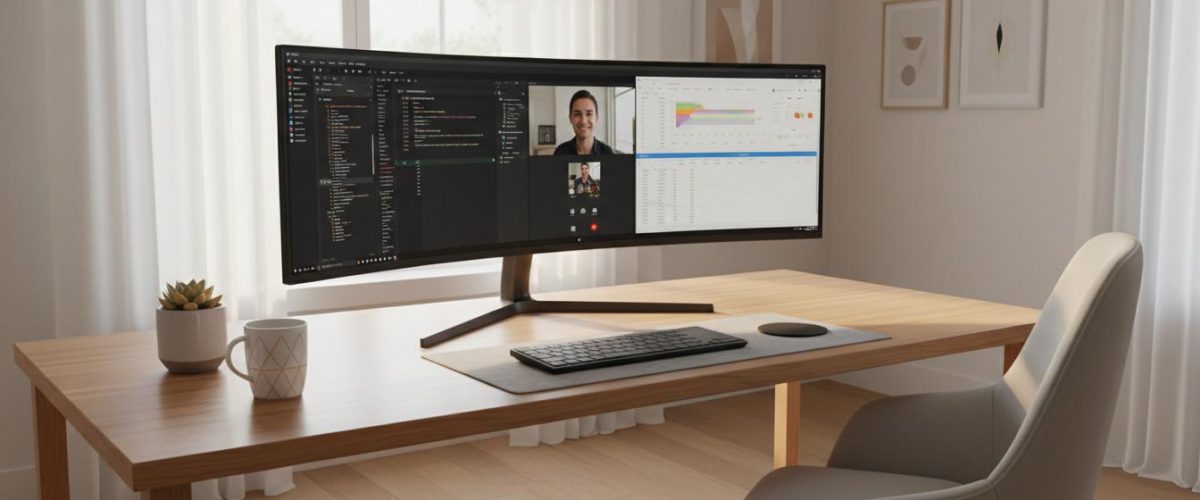
Ultrawide monitors eliminate the bezel between two monitors while providing 33% more horizontal screen space than a standard 27″ display. Genuinely excellent for document comparison, spreadsheet work, and code editing. The single-screen setup simplifies cable management and produces a cleaner desk. Not for everyone but transformative for the right workstyle.
Premium Option: Apple Studio Display (~$1,600)
If you’re on Mac and want the best possible screen for creative and knowledge work, the Studio Display’s 5K resolution, exceptional color accuracy, and clean Apple ecosystem integration are genuinely differentiated. The price is hard to justify for most users. For serious creative professionals on Mac, it’s the correct monitor.
The Dual Monitor Question
For most knowledge workers: two 27″ 1440p monitors beat one 32″ 4K monitor for productivity. The ability to have a reference document permanently visible on one screen while working on another eliminates the constant tab switching that fragments focus. If you’re on a budget, two identical budget monitors is often a better investment than one premium monitor.
Best Monitors for Productivity
4K and ultrawide monitors that reduce eye strain and increase screen real estate.
View on Amazon →